
Variables in RM2K
- meetthemeese

- Dec 12, 2020
- 5 min read
Updated: Oct 6, 2022
I dropped off for a bit and forgot what I had planned for subsequent tutorials. I forgot the game I'd planned to demo RM2K with via these tutorials. I forgot how to write coherently.

In RM2K, a variable is a thing whose value varies. These variables are basically little slots that can hold numbers, and the numbers they hold can be changed or set to anything. Okay, not anything, I'm sure there's a limit, but I have no idea. A good indicator might be the maximum EXP value any character can accrue (999,999 I think, and this variable value limit should include negative numbers as well up to the same limit, if I remember right).
Since they hold numbers, you can also manipulate their values in-game with some basic arithmetic. We'll take a look at that shortly. They're particularly useful for custom EXP systems and such, but they can also be used as flags (i.e., 0 equals false, 1 equals true) in much the same way switches are used.
A common scenario you might want in your game is a healing pond or herb, that on-click heals X% of the hero's HP. Let's dive into variables with that example.
Note that this scenario is different from using healing items from your inventory. Inventory items have their properties set directly in the database (coming soon in further tutorials).
The entry point for variables is as with switches - via an event. Double-click on any tile in the events layer, select your graphic, trigger and priority, double click the first (invisible) line on your event page and choose 'Control Variables' in tab 1, column 1 (called 'Change variables...' in Don's translation).

A new dialog pops up with all the options we have for manipulating variables.

Let's take a quick look at each of the panels here.
Variable - this panels lets us choose which variable(s) we want to modify. Single -> pick a single variable to change. This is how we can typically create variables; Batch - identify a batch of variables to change; Variable - this is a little weird. The variable you choose here - whatever value it has, another variable whose ID is equal to that value will get affected. Something like- variable 1 (points to)-> variable 2 I've yet to figure out where this is useful, but I imagine it might be used in complex scenarios like custom battle-systems and so on.
Operation - the set of arithmetic operations we can use on the chosen variable(s)
Operand - the value we want to operate with. Constant -> a number that you set; Variable -> the value of another variable; Variable ID -> similar to the variable above in point 1; Random -> a random number between the ranges you set, and that will be calculated in-game; Item -> 0 if item selected here does not exist in inventory, 1 if it does; Player -> pick a player and choose any of the attributes of that player to extract the value from. This will be useful for our example; Event -> similarly pick an event and any of its attributes from which to extract the value; Other -> choose any other in-game attributes for the value, such as the amount of money the party currently has.
The basic flow here is: Variable <operation> Operand as value.
Seeing the number of options, as well as the number of different places you'll notice variables are accessible, you might already be getting an idea of how versatile a feature this is, particularly for customisation.
But we're not looking at that right now, we're going to focus on how to use these in an uncomplicated way to create some helpful elements in a game.
Back to our example, to create the variable, select 'Single' from the first panel and click on the 3 dots next to that option.

This opens up a new dialog box. Here, we can 'create' our variable the same way we do switches - by simply selecting one of the slots and giving it a name.

Since I can, I'm going to make Chester lose 99% of his HP on clicking the event (identifiable by the graphic of a well on my map) instead of healing him, but I will explain how we can heal too.
Here's one solution to our problem statement -
Use a variable to store my hero's current HP amount.
Manipulate this same variable to get X% of the currently stored value. In my case, X = 99%.
Then use the 'Change HP' event command to change my hero character's HP by the amount held in this variable. If I wanted to heal, I would use the 'increase' option of this command. Since I want to cause damage, I will be using the 'decrease' option instead.
That's all it takes!
Let's carry out those steps now. We've already created a variable by naming it, let's set the operand and operation.
Choose 'Set' as your operation.

For your operand, select your 'Player' and pick 'HP' from the drop-down on the right and click 'OK'.
NOTE: Max HP that you see in the drop-down is the total HP your character can have at their current level. HP is the actual HP they have. Careful while using Max HP as the base for damage-causing scenarios, you might end up lowering their HP to 0 and accidentally killing them.

COOL TIP: You can show what value a variable currently holds in message boxes in-game! The "code" to use for that is \V[variable id]. In my case (and likely yours too), that would be \V[0001]. You can test it in a quick playthrough to see what value your variable has once you set it (all variables start off with 0 until you set a value to them).
![Display variables in text boxes in-game using \V[variable id here]](https://static.wixstatic.com/media/b63de4_59bae79bb10e43e181d00ee666ab06ef~mv2.png/v1/fill/w_217,h_153,al_c,q_85,enc_avif,quality_auto/b63de4_59bae79bb10e43e181d00ee666ab06ef~mv2.png)
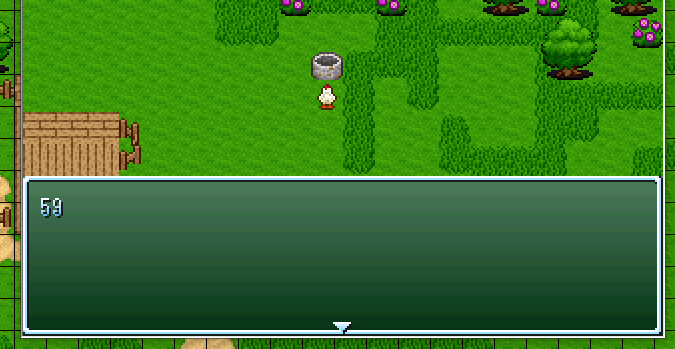

Next we want to modify the same variable and end up setting it to X% of the current HP level - that is, (Variable * X) / 100. So as the next command, pick 'Control Variables' again, select the same variable you just set and modify it like so -

The next command you add will be dividing the new value by 100-

Now we have our final value that we need. Let's increase (for healing), or in my case, decrease the hero's HP by this value. Add 'Change HP' (tab 1, column 2) as the next command, set the hero (or entire party if you wish) from the Actor panel, choose increase for healing, or decrease for damage, in the next panel, and finally select your variable as the operand.
There's an additional 'Allow death' option which will presumably let your character die if the calculated damage is more than their current HP. If death is not allowed, their HP will be reduced to 1 rather than going down to 0 in such a case. Something I had totally forgotten about while cautioning against using Max HP above hehehe

There's a few more commands we can add to tie things up neatly. I added a 'Flash Screen' (tab 2, column 2), a 'Shake Screen' (tab 2, column 2), a sound effect (tab 3, column 1) and a text box displaying how much HP Chester just lost.

And it's done!
Run a quick test play and see if it works as it should.


BONUS TIP: You can set up 'healing stations', inns or similar by creating an event that calls the 'Recover All' command (tab 1, column 2). This command will fully heal your whole party or a single character (whichever you choose).

FUN EXERCISE: Try to use switches and variables to limit the number of times your healing item heals the hero. Hint: An event's condition panel, if you'll remember, allows us to use a variable as a condition as well. And we've already seen how we can limit an occurrence to just one, using a switch and event pages. The concept is similar here, except with variables, you can increase the limit to 3, 4 or any number you want.
Next post, we'll tie up all we've learnt about switches and variables with a couple of example scenarios (potentially involving the thief from the earlier posts), as well as the above exercise.
Until then,
- Meese Who Doesn't Understand The Fascination Folks Have For Strange Things Like DDR


Comments